Bus Simulator Indonesia APK Mod Camera Views Explained – Choosing the Right Perspective Every Time
Ever wonder why some Bus Simulator Indonesia Mod APK players can thread their bus through impossibly tight spaces while you’re constantly scraping walls? Or how they park perfectly on the first try while you’re repositioning for the fifth time? The secret isn’t better reflexes or magic skills—it’s knowing which camera view to use when. Most players stick to one view they’re comfortable with and struggle through situations where that view sucks. Meanwhile, pros are switching views constantly, using each camera angle like a different tool. Interior for this. Bird’s-eye for that. Chase cam for something else. Once you understand what each view actually shows you and when it helps most, driving in BUSSID gets exponentially easier. Let’s break down every camera angle, when to use it, and the specific situations where switching views turns impossible tasks into easy ones.
Understanding BUSSID’s Camera System
Before diving into individual views, let’s clarify how the camera system actually works in Bus Simulator Indonesia.
The Four Core Views You’ll Actually Use
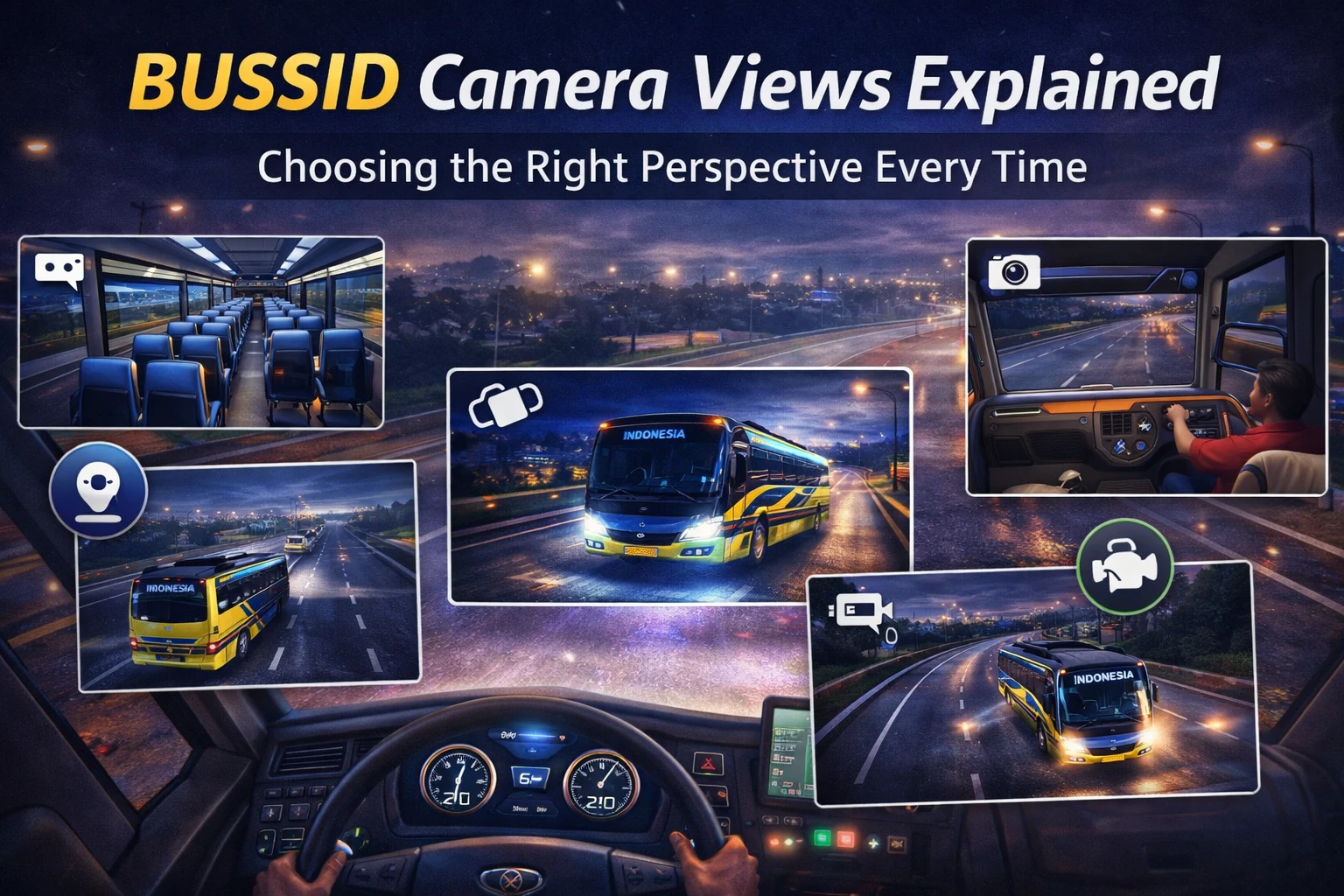
BUSSID gives you four primary camera perspectives, each showing different information. That small camera button (usually the top-right corner with an eye or camera icon) cycles through these views. Tap it once, and you switch to the next view. Keep tapping, you cycle through all four.
The views don’t have names displayed on screen, so players call them different things. For clarity, we’ll use these names: Driver View (inside the bus), Chase View (behind the bus), Overhead View (looking straight down), and Reverse View (looking backward). Some players add more custom views through mods, but these four are standard and cover every situation you’ll encounter.
Why View Selection Actually Matters
Here’s something nobody tells beginners: your camera view determines what information reaches your brain. Sounds obvious, but think about it—if you can’t see the curb next to your bus, you can’t park close to it. If you can’t see the vehicles beside you, you can’t judge lane changes safely.
Different views reveal different information. Driver View shows the distant road ahead clearly, but hides your bus’s position. Overhead View shows exact positioning but makes judging forward distance impossible. Neither view is “better”—they’re tools for different jobs. Using the right tool makes tasks easy. Using the wrong tool makes everything harder.
Driver View – Your Immersion Perspective
This is the view from behind the steering wheel, looking through the windshield. You see the dashboard, interior details, and the road ahead just like a real bus driver would.
What Driver View Shows You Best
Distance ahead: The windshield provides a wide forward view perfect for spotting obstacles, vehicles, and road conditions far in advance. On highways doing 80+ km/h, you need to see distant traffic to react in time. Driver View gives you that range.
Dashboard information: Your speed, fuel, and other gauges sit naturally in view without covering important screen space. This integrated information display feels more realistic than external views where gauges float in corners.
Immersion and atmosphere: Want to actually feel like you’re driving a bus through Indonesian streets? This is your view. Rain sounds better. Night driving feels more authentic. You’re not watching a bus drive—you’re driving it.
Where Driver View Fails You
Spatial awareness: You cannot see where your bus’s edges are. Is your right mirror about to clip that pole? You won’t know until you hear the crash sound. Are you centered in your lane? You’re guessing based on road lines visible through the windshield.
Tight maneuvering: Navigating narrow market streets or threading between parked cars? Driver View gives you almost no peripheral information. That motorcycle you’re about to hit at a 45-degree angle? You won’t see it until it’s under your bumper.
Any parking situation: Parallel parking requires knowing exactly where your rear bumper is relative to the curb. Driver View shows you neither. Terminal parking needs precise alignment. Driver View makes that impossible. You’re parking blind.
Best Use Cases for Driver View
Highway cruising at speed: Long straight roads where you need forward vision and there’s no maneuvering needed. Set your lane, maintain speed, and watch traffic ahead. Driver View excels here.
Casual scenic driving: Free Roam mode exploring the countryside? Driver View maximizes the experience. You’re here for atmosphere, not precision driving.
Taking interior screenshots: Showing off your custom dashboard or steering wheel mods? Obviously needs Driver View to be visible.
Chase View – Your Default Workhorse
The camera sits behind and slightly above your bus, following it as you drive. You see your entire bus plus the road around it. This is the most commonly used view for good reasons.
What Makes Chase View So Versatile
Complete spatial context: You see your bus’s position within lanes, distance to nearby vehicles, and upcoming road features all simultaneously. Lane drifting? You notice immediately because you watch the whole bus relative to lane lines.
Turn anticipation: The camera angle shows what’s coming before your bus reaches it. Sharp corner ahead? You see it and can slow down early. In Driver View, you’re already at the corner when you realize it’s sharper than expected.
Traffic awareness: Vehicles approaching from the sides appear in your view naturally. That car merging from your left? You see it without specifically checking. In Driver View, you’d need to consciously check mirrors.
Decent for moderate parking: While not as precise as Overhead View, Chase View gives enough information for simple parking situations. Pulling into wide terminal bays? Chase View works fine.
Chase View Limitations
Forward distance judgment: How far away is that stopped traffic? Chase View makes this harder to judge than Driver View. The angle doesn’t give you the same long-distance perspective.
Precise positioning: Parking needs inch-perfect placement? Chase View can’t give you that. You see the approximate position but not the exact distances to curbs or other obstacles.
Immersion breaking: If you care about feeling like you’re actually driving (not watching a bus drive), external views break that feeling. You’re observing, not experiencing.
Perfect Situations for Chase View
City driving with traffic: Navigate through cars, bikes, and pedestrians while maintaining lanes and watching for traffic lights. Chase View gives you all the information you need.
General route following: Career mode missions where you’re following a marked route through varied terrain. Chase View balances awareness of your bus, the route ahead, and surrounding traffic.
Learning new controls: Beginners benefit from watching their bus respond to steering inputs. Turn the wheel left, watch the bus turn left. This visual feedback accelerates learning.
Multiplayer convoy driving: Following other players or being followed? Chase View lets you see other buses around you while monitoring your own position.
Overhead View – Your Precision Tool
The camera looks straight down from directly above. Your bus appears as if seen from a helicopter, with the entire scene flattened into a top-down map view.
Why Overhead View Is Non-Negotiable for Parking
Exact positioning: You see your bus outline, the parking space outline, and the precise gap between them measured in centimeters. There’s no guessing—you watch your bus slide into position with perfect spatial information.
Curb distance: How close are you to the curb? The overhead view shows you exactly. Half a meter? Ten centimeters? You know instantly. Other views make you guess.
Angle alignment: Parking spaces aren’t always straight. Overhead View shows if you’re angled correctly to enter the space or if you need to adjust the approach angle.
Obstacle detection: That small post beside the parking space? That concrete barrier? Overhead View reveals obstacles that other views hide behind your bus or outside your field of view.
Where Overhead View Becomes Useless
Forward driving: Try driving on a highway in Overhead View. You’ll crash within seconds. The view shows you where your bus is, but not what’s ahead or how fast you’re approaching things.
Speed judgment: How fast are you going? Overhead View makes this almost impossible to judge visually. You’re watching a top-down icon move across a map—speed isn’t intuitive.
Traffic interaction: Other vehicles appear as top-down shapes. Judging their speed and predicting their movements becomes difficult when you’re not seeing them from a natural perspective.
When to Switch to Overhead View
Any parallel parking: Curbside stops in career mode, parking during missions, or just practicing in Free Roam. Switch to Overhead View before attempting parking and your success rate will triple immediately.
Terminal bay parking: Backing into terminal spaces requires precision. Overhead View shows exactly where your rear end is going as you reverse.
Navigating tight spaces: Threading through construction zones, narrow market streets, or between parked vehicles? Switch to Overhead briefly to see if you’ll fit before committing.
Complex multi-intersection navigation: Five-way intersections with tram tracks and bike lanes? Overhead View reveals the path through chaos that looks confusing from other angles.
Reverse View – Your Backup Camera
Shows what’s directly behind your bus, like a real backup camera. Unlike other views that you might use for extended periods, Reverse View is more of a quick safety check.
Critical Information Reverse View Provides
Rear obstacles: That pole, wall, or vehicle behind you that other views don’t show. Before any reverse movement, check Reverse View for clear space.
Following distance: Someone tailgating you? Reverse View shows exactly how close they are, informing your braking decisions.
Lane change safety: Checking blind spots before changing lanes? Quick tap to Reverse View confirms no vehicles are beside/behind you in the target lane.
Why You Can’t Drive in Reverse View
Obviously, you can’t see where you’re going forward. But also, the view isn’t designed for continuous use—it’s designed for brief checks. Extended use causes disorientation and crashes.
Proper Reverse View Usage
Before backing up: Mandatory check. Tap to Reverse View, scan for obstacles, confirm clear, then proceed with reversing (switching to Overhead View for precision if needed).
Before sudden braking: Quick check that the vehicle behind you has space to stop safely. Prevents being rear-ended by AI vehicles following too closely.
During congested traffic: Periodic checks when surrounded by vehicles to maintain awareness of what’s behind you as traffic shifts.
View-Switching Sequences for Common Situations
Good players don’t randomly switch views. They use specific sequences optimized for different tasks.
The Perfect Parking Sequence
Chase View while approaching the parking area (you need to see the area and identify your specific spot). Brief Driver View to check any signs or markers indicating the exact space (reading from external views is harder). Overhead View for the actual parking maneuver (precision positioning). Quick Reverse View before pulling forward after parking (confirm clearance behind you). Chase View to exit the parking area (spatial awareness returning to normal driving).
This five-view sequence takes maybe 30 seconds but ensures perfect parking every time. Beginners using one view for everything take five minutes and park crooked.
Highway to City Transition
Driver View on the highway (forward distance and speed judgment). Switch to Chase View as you approach the city exit (need spatial awareness for the turn). Maintain Chase View through city streets (traffic, pedestrians, lights). Switch to Overhead View for any stops or parking (precision). Return to Chase View for continued city driving.
Complex Intersection Navigation
Chase View approaching the intersection (see all traffic and lights). Brief Overhead View if the intersection layout is confusing (understand which lane goes where). Driver View if there are specific signs you need to read. Immediately back to Chase View after clearing the intersection (resume normal spatial awareness).
Customizing Your View Experience
BUSSID lets you adjust certain camera parameters in settings. Understanding these options optimizes your experience.
Camera Distance Adjustment
In settings, you can usually adjust how far the Chase View camera sits from your bus. A closer camera (less distance) gives better detail of your bus and immediate surroundings, but reduces forward vision. A farther camera (more distance) provides a wider context but makes your bus smaller on screen.
The optimal setting depends on your phone screen size. Smaller screens benefit from closer cameras (more detail in a limited space). Larger screens can handle farther cameras (taking advantage of more screen real estate).
Camera Height Options
Some versions let you adjust camera height in Chase View. Lower camera (bus at eye level) feels more cinematic and dramatic. A higher camera (looking down at the bus) provides better spatial information similar to Overhead View’s benefits.
For gameplay optimization, higher is generally better. For screenshots and videos, lower looks cooler.
First-Person FOV (Field of View)
If available in settings, FOV determines how wide your Driver View windshield appears. A narrow FOV (like looking through a tunnel) provides more forward detail but terrible peripheral vision. Wide FOV (fish-eye effect) shows more, but distorts perspective.
Most players prefer moderate FOV settings that balance peripheral awareness with natural perspective.
Common View-Related Mistakes
Mistake 1: Parking in the Driver or Chase View
This is like trying to thread a needle while wearing oven mitts. Technically possible with enough attempts and luck, but unnecessarily difficult. Overhead View exists specifically for parking. Use it. Your success rate will jump from 30% to 95% immediately.
Mistake 2: Never Checking the Reverse View
Then wondering why you keep getting back into things constantly. A one-second check before reversing prevents 90% of backing-related crashes. It’s not optional—it’s basic safety.
Mistake 3: Using Overhead View While Driving
Some beginners discover Overhead View and think, “This shows everything, I’ll use it always!” Then they crash because they can’t judge forward distance or speed. Overhead is for precision tasks, not normal driving.
Mistake 4: View-Switching in High-Speed Situations
Don’t experiment with camera views while doing 100 km/h on a highway. The moment of disorientation as views switch can cause crashes. Learn view-switching during calm Free Roam driving, not during intense career missions.
Frequently Asked Questions
Q1: Can I add more camera views beyond the default four?
Through mods and custom camera scripts, yes. Some advanced players use additional views like roof-mounted cameras or side-view angles. However, the default four views cover every situation you’ll encounter. Adding more is personal preference for variety, not necessity.
Q2: Why does my camera sometimes move on its own?
You might have auto-camera features enabled that adjust the view angle based on the driving situation. Check camera settings and disable auto-adjust if you want full manual control. Some players like auto-adjust for cinematic feel; others find it disorienting.
Q3: Is there a best camera view for beginners?
Chase View. It provides the most balanced information for learning. Once comfortable, add Overhead View for parking and Reverse View for safety checks. Driver View can wait until you’re confident with basics—immersion doesn’t help when you’re still learning controls.
Q4: How do pro players switch views so fast?
Muscle memory. They’ve tapped that camera button thousands of times and know exactly how many taps reach which view from their current position. Practice view-switching deliberately in Free Roam until it becomes automatic.
Q5: Can I map view changes to different buttons?
Some custom layouts and mods allow this, but standard BUSSID uses one button that cycles through views. Most players adapt to this system fine—having four separate buttons would clutter the screen more than the convenience is worth.
Mastering View Selection
Camera views aren’t just different ways to look at the same thing. They’re different information sources for different needs. Driver View answers “what’s ahead?” Chase View answers “Where am I positioned?” Overhead View answers “exactly where are my edges?” Reverse View answers “what’s behind me?”
Stop thinking of views as preferences and start thinking of them as tools. You wouldn’t use a hammer for every job in a workshop. Don’t use one camera view for every driving situation. The camera button should be one of your most-tapped controls—right up there with steering and pedals.
Spend an hour deliberately practicing view-switching. Drive a route using only Driver View, then repeat with only Chase View, then with optimal view-switching. You’ll immediately notice how much easier the optimal-switching version feels. That ease translates to better mission scores, fewer crashes, and faster progression.
Now get out there and start switching views like a pro. Those parking spaces won’t perfectly align themselves!
Level Up Your BUSSID Skills
Master views, master the game:
- 🎮 Download BUSSID MOD APK – unlock all features
- 🚀 Complete beginner’s guide – full gameplay tutorial
- 🎯 Controls explained – master every button
- 🏆 Top 10 driving tips – improve your skills
- 💰 Earn coins fast – maximize your income